Analytics
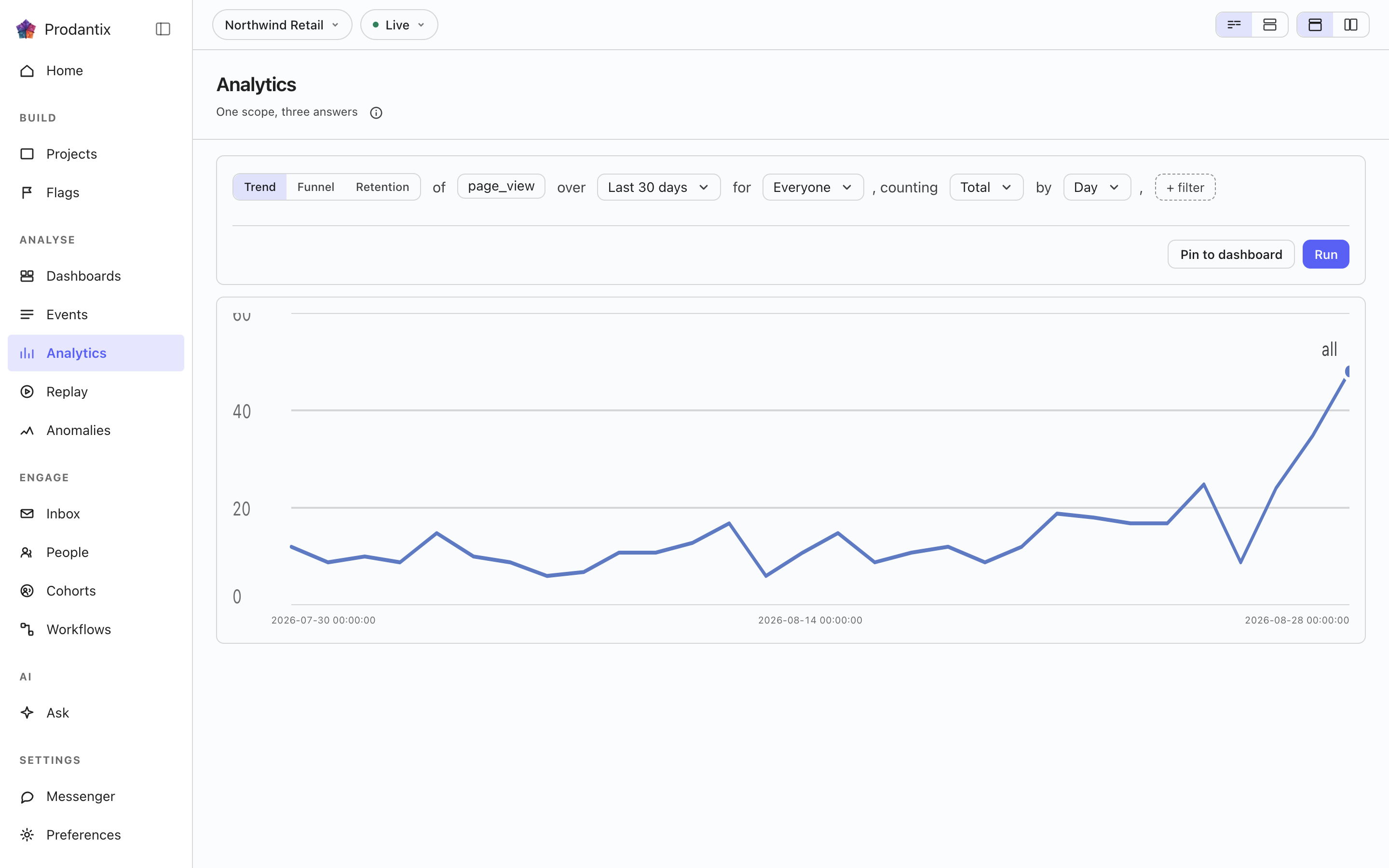
The workbench: one question written as a sentence and asked three ways, as a trend, a funnel or retention. The result draws in place, and one worth keeping pins to a dashboard.
Six modes, one question
A trend counts one event over a range, as totals or unique people, at a granularity the range makes sensible. A funnel orders two or more steps and reports who made it through each. Retention asks who came back: an entry event, a return event and a matrix of periods. Paths asks what happened next, stickiness how many days a period's users came back on, and lifecycle who was new, returning, resurrecting or dormant in each period. Switching modes keeps everything the modes share, so a trend refined into a funnel does not start over.
Metrics and formulas


A trend is not one measure: Add a metric appends a letter, B onward, each its own event and its own total or unique users measure, the scope event staying letter A. Add a formula turns a row into an expression combining those letters with decimal numbers and + - * /, grouped with parentheses, up to 200 characters and never another formula's own letter. A point the formula cannot compute, a division by zero among them, draws as a gap rather than a zero.
The compared period


Compare asks the same question again over the window right before this one: Previous Period, Previous Day, Previous Week, Previous Month, Previous Quarter or Previous Year. Every series in the result gets a past twin, drawn apart from the current one rather than as a plain extra line, and the scope note names which one is picked. The compared period draws on Line, Stacked Line, Column, Stacked Column, Bar, Stacked Bar, Table and Metric; Pie draws the current period only.
Breakdowns


Breakdowns split a trend by up to three fields at once, an event property or one of the columns the DSL allow-lists: every series in the result carries the tuple of values it is one combination of, in the breakdowns' own order. The table reads every combination as its own row; the other chart types read the first breakdown as the series and fold the rest into its key.
Paths: what happened next


Paths start from an anchor event and walk one to five steps forward, or backward, within the anchor's session or a window of minutes or hours. Each step reports its top three, five or ten events with the share of that step's users, the events past the top folded into one row, and the users who took no further step. The default reading is one column per step; the same result reads as a sankey, with a block per event and a ribbon into each block of the next step, or as a tree that nests the next step's events under each event until its caret opens it.
Step by chooses what a step is. By event, the walk is the top event names after the anchor. By page, it considers page views only and each step's key is the host with the pathname, so the walk reads pricing, sign-up, checkout instead of page view, page view, page view. The anchor changes with it: the event field becomes a picker over the pages visitors actually reached in the range, the top hundred by users, because a page anchor typed by hand would have to match a host and a pathname exactly to answer anything. In the sankey and the tree a page step draws the pathname with its host as a muted prefix, so two hosts sharing a path stay tellable apart.
Stickiness: how many days


Stickiness counts, for each week or month, how many of the event's users were active on one, two, three and more of its days. The result row steps between periods; the column chart reads one period at a time, and the table reads all of them.
Lifecycle: new, returning, resurrecting, dormant


Lifecycle sorts each period's users into four states: new were first seen in the period, returning were active in it and the period before, resurrecting came back after a period away, and dormant were active the period before and not in this one. First-seen reads the whole retained history, so a user is new once; activity is read one period before the range, so the first period's returning and dormant counts are real rather than zero by construction. The stacked column draws dormant below the zero line; the table adds a net column.
The sentence and its clauses


The question reads as a sentence: measure, event, range and any clauses, each word an editable control with the project's own event names suggested as you type. Property clauses narrow by what an event carried; a cohort clause scopes the whole question to a saved cohort. Whether the question composes as one sentence or as labelled groups is a stored preference, as is the split or stacked layout; nothing runs until Run, so a half-edited question never fires.
Measures, events and exclusions
Each metric counts its events in total or as unique users, or reads a number they carried: the measure chooser groups Count, Sum of and Average of, the last two listing every property the metric's events sent as a number, and the line then reads the sum of amount. A metric's event field takes up to 8 events, counted together as one series under the metric's letter and labelled with every event it counts. In a trend, Exclude after the cohort leaves out People who did an event, any of up to 8 within the range, A cohort other than the one the question is scoped to, or both; each breakdown also takes values to leave out of it. The range is the date picker: Today, Yesterday, Last 7 days, Last 30 days, Last 3 months, Last 6 months and Last 12 months, or any span of days picked on its two-month calendar. Days are UTC days, as the warehouse counts them, and a relative range is saved by name, so a report saved over Last 30 days always reads the last 30 days. A metric sends its extra events as orEvents, the query sends excludeDid and excludeCohort, and the property list is numericProperties on eventCatalog.
Reading a result as another chart


Every result row ends with the chart type it is read in. The menu lists Line, Stacked Line, Column, Stacked Column, Bar, Stacked Bar, Pie, Table, Metric, Funnel Steps, Retention Curve, Ranked Columns, Sankey and Tree, in that order, with the ones the result cannot take greyed rather than hidden. A trend, a stickiness period and a lifecycle take any of the series types; funnel steps take a funnel; the retention curve draws one line per cohort over its matrix; ranked columns, the sankey and the tree read paths; the table reads everything. Each mode remembers the type you chose, the URL carries it as ?chart=, and a pinned tile keeps it.
Chart settings
The settings button beside the chart type opens the chart's own settings, as a popover, a panel beside the chart or a dialog, whichever the page's layout picker names. The Left axis and Right axis tabs set whether each axis shows, its title, its unit (count, currency, percent or custom), a prefix and suffix, whether large numbers abbreviate, how many decimals with a preview of the result, fixed minimum and maximum bounds with values past them clipped to the edge or left out, and a linear or logarithmic scale. The Time axis tab shows or hides the time axis, titles it and shades weekends on a daily or hourly chart. The Series tab moves each metric or formula to the left or right axis, which each metric's own row in the question also does, and picks the Standard palette or a colour-blind safe one. Every change redraws the chart at once; a saved report or insight keeps its settings, its version history names a change to them, and a pinned tile draws with them, on the phone too. Reports, insights and tiles carry them as the chart field beside viz.
The results table
Under the chart, a trend's results table lists one row per series: the swatch its line is drawn in, its breakdown values (or its metric when the question has several letters or no breakdown), a Sum column and a column per period, with each period's past twin beside it when the trend is compared. Clearing a row's checkbox, or clicking its swatch, takes its line off the chart; the row stays in the table muted with a hollow swatch, the legend keeps it hollow, and the header checkbox puts every row back or takes every row off. The search field above the table narrows its rows to those whose values contain what is typed, and never takes a line off the chart. The view group in the result row switches between Chart, Table, and Chart and table, which is where a result opens; with the chart type set to Table the table is the chart and the group steps aside. The view and the rows taken off are saved with the report as part of its chart settings, as view and hidden in the chart field, so a saved report, an insight and a pinned tile draw the same lines, on the phone too. The other modes show their own table under the chart, with search and without row choice.
The line above the chart says how long ago the result ran, and Refresh beside the chart settings asks the same question again. Changes made to the sentence since then wait for Run.
Acting on a point
Clicking a point on a chart opens a menu titled with the point itself: its series, its bucket and its value; on the phone a long press opens the same menu. This report changes the question and runs it again. Zoom in narrows a trend or a lifecycle to the bucket clicked, one step finer: a month into weeks, a week into days, and a trend's day into hours. On a point of a breakdown, the filter row adds a filter for each of its values and the exclude row leaves one value out of its breakdown, one row per value; on a point with no breakdown the two stay greyed as Filter to it and Exclude it. Look closer lists who and what made the point, in every mode: a trend or lifecycle bucket, a funnel step, a retention cell, an event on a path and a stickiness column each name their own. View users, View events and View replays open them in a dialog by default, or in a side panel or on the page itself, as the picker on the analytics page sets. Open in People, or Events, or Replay, carries the point to that page, where a chip names it and clears it; when the picker sends the point straight to the page, Back to the report returns to the question. Explain holds Root cause analysis: on a trend point with a bucket before it, counting totals or unique users, it drafts the question in Ask of why the line rose or fell between the two. Over the API, the point travels as the point argument of projectPeople and replaySessions and in the filter of events: the report's kind and query, plus the bucket, step, event, cohort, period, days active or state that names it.
Annotations
Add an annotation in a point's menu marks that day, or a range picked on the calendar, with a note and up to ten tags. On a report, Shows on keeps it to the report or shows it on every chart in the project whose dates cover it; a question that is not saved as a report shows it on the project's charts. A marker sits on the date axis: hovering it draws its line and a card with the note, the tags, the days and who added it, and clicking it keeps the card open with Edit and Delete for its author and for anyone allowed to write annotations. The Annotations tab of the chart settings lists them and hides the tags you switch off, saved with the report, and a board's tiles draw the same markers. On the API they are annotations, createAnnotation, updateAnnotation, deleteAnnotation, the annotationChanges subscription and /v1/projects/{projectId}/annotations; agents read and add them with prodantix.annotations.list and prodantix.annotations.create.
Results, and keeping them
A trend draws as a series, a funnel as its steps with the drop between them, retention as a matrix whose rows are entry periods, paths as ranked columns per step, stickiness as columns over days active and lifecycle as a stacked column. Once a result exists, Pin saves the question to a board on Saved, where its tile re-runs the query on every open and draws it as the chart type it was pinned in.
Beside Pin sits Save. Its first row is As an insight: the question is kept whole, editor and chart, under a name asked for in a prompt, and the card head then names the open insight on a chip; the address carries ?insight=, so the link reopens it. Edit the question and the chip reads changed after the name until Save's first row, now Update, writes the edit over what was saved, or its second row, Save as a new insight, keeps the edit as another. The next row is Users as a cohort: it names the people a result counted and keeps them as a static cohort. The list is materialised on the server from the query as it ran, so it holds everyone the result counted rather than everyone the chart drew, up to 100,000, and a result that counted nobody is refused. The cohort keeps the sentence it was read under, and being a fixed list it is never re-evaluated: the same question asked next week answers about next week, while the cohort still holds who it counted today. Saved insights are listed on Saved's Insights tab. Below a divider sits Export CSV: the server writes the result as a spreadsheet from the query as it ran, one row per period and breakdown with a column per metric letter, every combination up to the engine's thousand rather than the chart's top few, and names the file after the tool and the range. Last comes Watch for a threshold, live on a trend result: it saves the result as an insight if it is not one yet, then states one bound on its first metric, above, below or changing by a value, checked once a day over the insight's last complete bucket; while the bound is crossed the insight is listed in Needs you and the reopened insight draws the bound as a band on its chart, and the alert clears by itself when the value returns.
Save as report keeps the question as a report on a board, in two steps: the name and a description first, then the board, picked from a searched list three rows tall with New board beneath. The address then carries ?report=, the page head reads project › board › report with the board a link, and the card head names the open report on a chip, reading changed after the name once the editor differs from what was saved, until Save report writes the edit as the next version or Save as new report keeps it as another. With a report open the Save menu also renames it, moves it to another board or duplicates it; a move lands at once and the snackbar says so with Undo. Under the card the version strip names the current version, who saved it and when; Show history unfolds every version, what changed, by whom and when, three entries in view, with Restore beside every one but the current, and a restore writes a new version copying the chosen one rather than rewriting history. Reports are listed on the Reports tab of Saved.
Sharing a report
With a saved report open, the run row offers Copy link and Share. Copy link copies the report's address with its range, cohort and filters, and it opens for anyone in the company who may open the report. Share opens two tabs, Teammates first. Teammates sends the report to up to 20 people in the company, with a note if you add one: each gets it in the console's notifications, as a push where they have turned pushes on, and by email. The dialog stays open and says who it was sent to.
Public link makes a read-only page that anyone with the link can open without signing in: the report as of its last run, with its chart and its numbers but not its question's filters, cohort or people, and every run of the report as saved refreshes it. The link stops working at the end of the day chosen, from tomorrow to 90 days away, In 30 days to start; choosing another day while it is on renews it, and turning it off stops it at once. Making a public link takes its own permission, which agents never hold, and a role without it sees the switch disabled, with a line saying so.
Where this meets the API
The concept is the Analytics pillar. On the wire, the six modes are six queries: runQuery, runFunnel, runRetention, runPaths, runStickiness and runLifecycle, with event names suggested from eventCatalog and, for a path stepping by page, the anchors from pathsPages (GraphQL reference). Pinning writes the question into a board through updateDashboard, with the report's kind and the chart type beside its query; saving an insight is createInsight, Update is updateInsight, and Saved's Insights tab reads insights. Save as report is createReport, Save report is updateReport, the strip's Restore is restoreReportVersion, and Saved's Reports tab reads reports. Sharing reads the public link with reportPublicLink, turns it on or renews it with setReportPublicLink, turns it off with turnOffReportPublicLink and sends to teammates with shareReport, while reportShareChanges streams every change; a visitor's page reads /v1/shared-reports/{token} (API reference).