Prodantix in Slack
Post workflow updates to the channels your team reads, and answer people who ask for help in Slack from the Prodantix inbox.
What the app does in Slack
Updates in the right channel
Add a Post to a channel step to a Prodantix workflow and pick the channel. Prodantix posts there each time the workflow runs, or gathers runs into an hourly or daily digest.
Slack channels as an inbox
Connect a channel where customers or colleagues ask for help. Each new message becomes a conversation in the Prodantix inbox, thread replies join it, and your answers from Prodantix post back into the same thread.
- Only where you say
- The app posts only to channels you pick, and keeps messages only from channels you connect to an inbox.
- Names the person
- Each message from Slack is filed under the person who wrote it, named from their Slack profile.
- Replies in the thread
- A reply from the Prodantix inbox posts into the same Slack thread, never as a new message.
Set it up in Prodantix
From the Integrations page
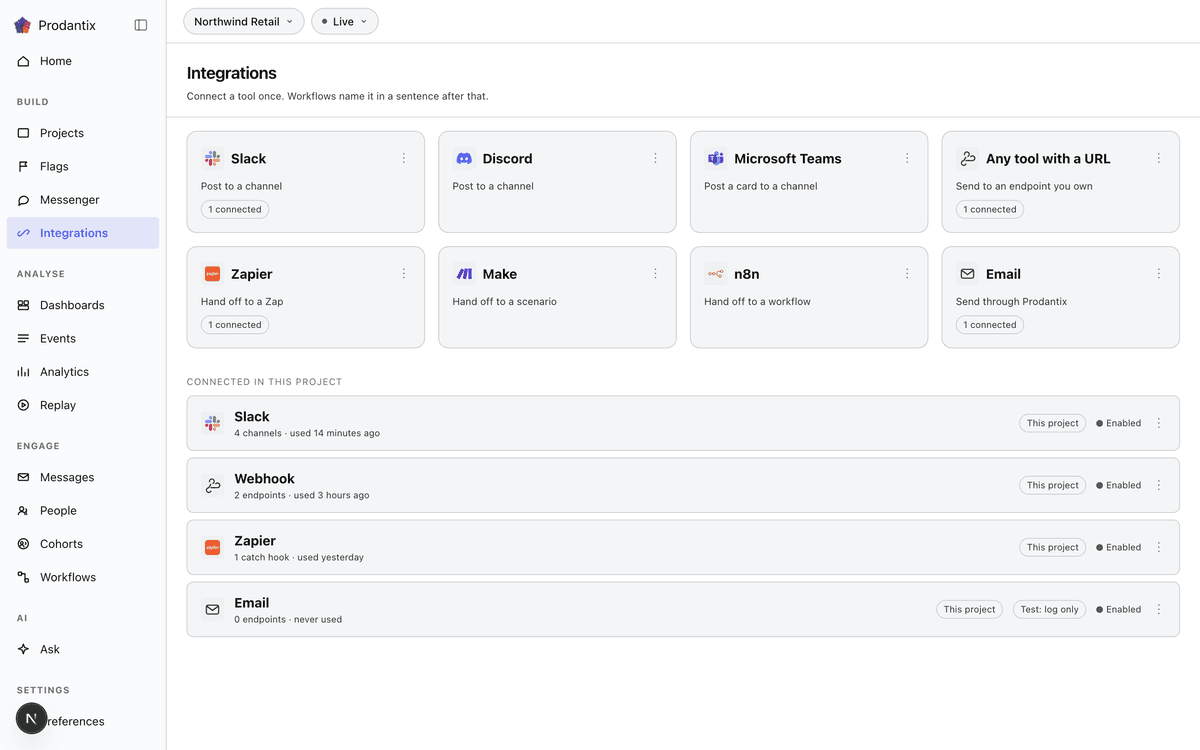
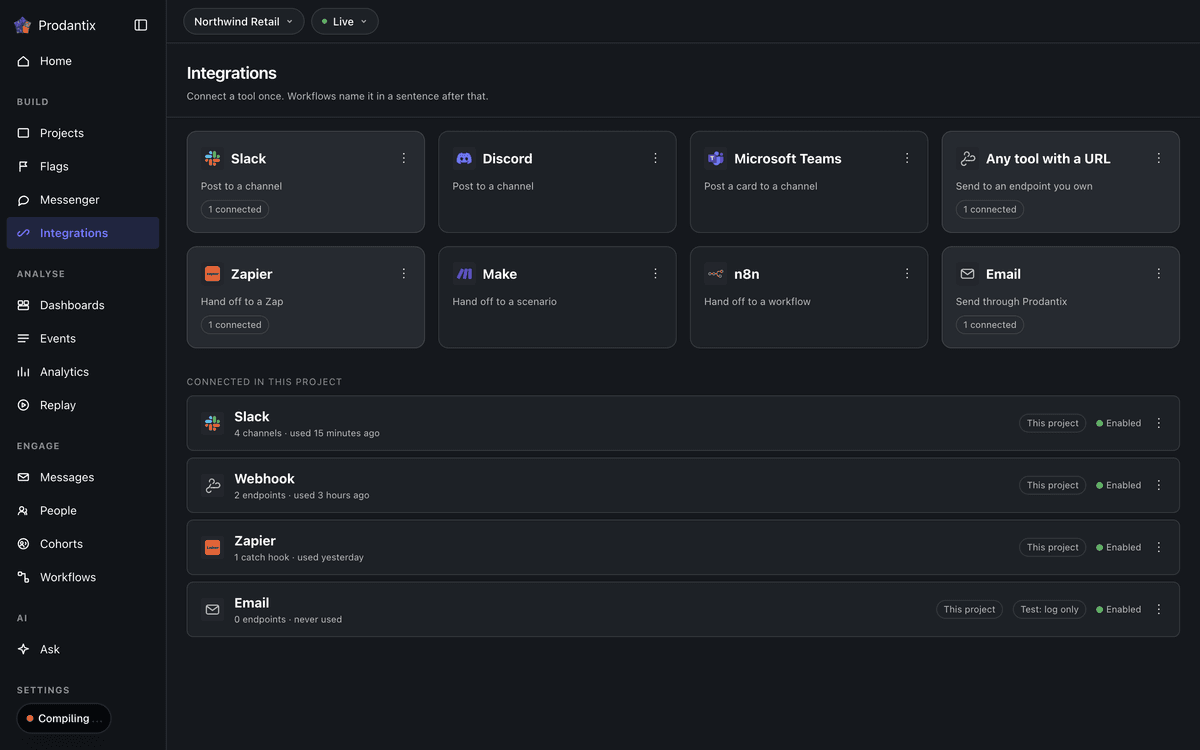
Slack is installed from Prodantix, so the app knows which project it posts for and which inbox each channel feeds.
Open Prodantix
Sign in to Prodantix. No account yet? Sign up free.
Install the app
On the Integrations page, choose Slack and allow the app in your workspace.
Pick what it does
Add a Post to a channel step to a workflow, or connect a channel to your inbox on the Communications page.
Your data and help
- What it keeps
- The workspace name, the channels you pick and the messages of channels you connect to an inbox. The privacy policy says how long they are kept and how to ask for them.
- Leaving
- Revoke the workspace on the Integrations page in Prodantix and its token is deleted at once. Removing the app from the workspace is done in Slack.
- Help
- Write to support@prodantix.com, or read the integrations guide. A message to the app in Slack points you to both.
Bring Prodantix into Slack
Install it from Prodantix, then choose where it posts and which channels it reads.