分析
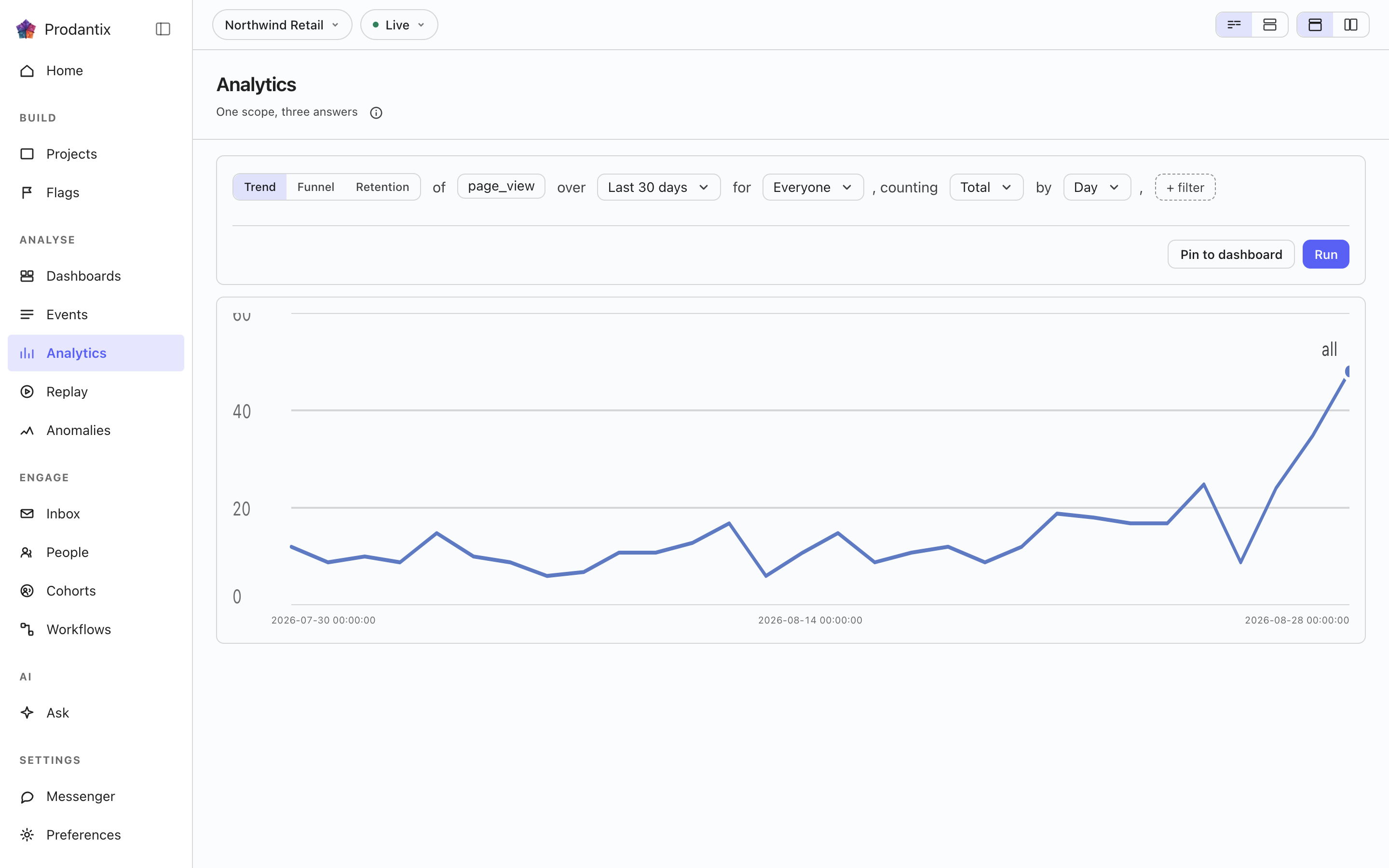
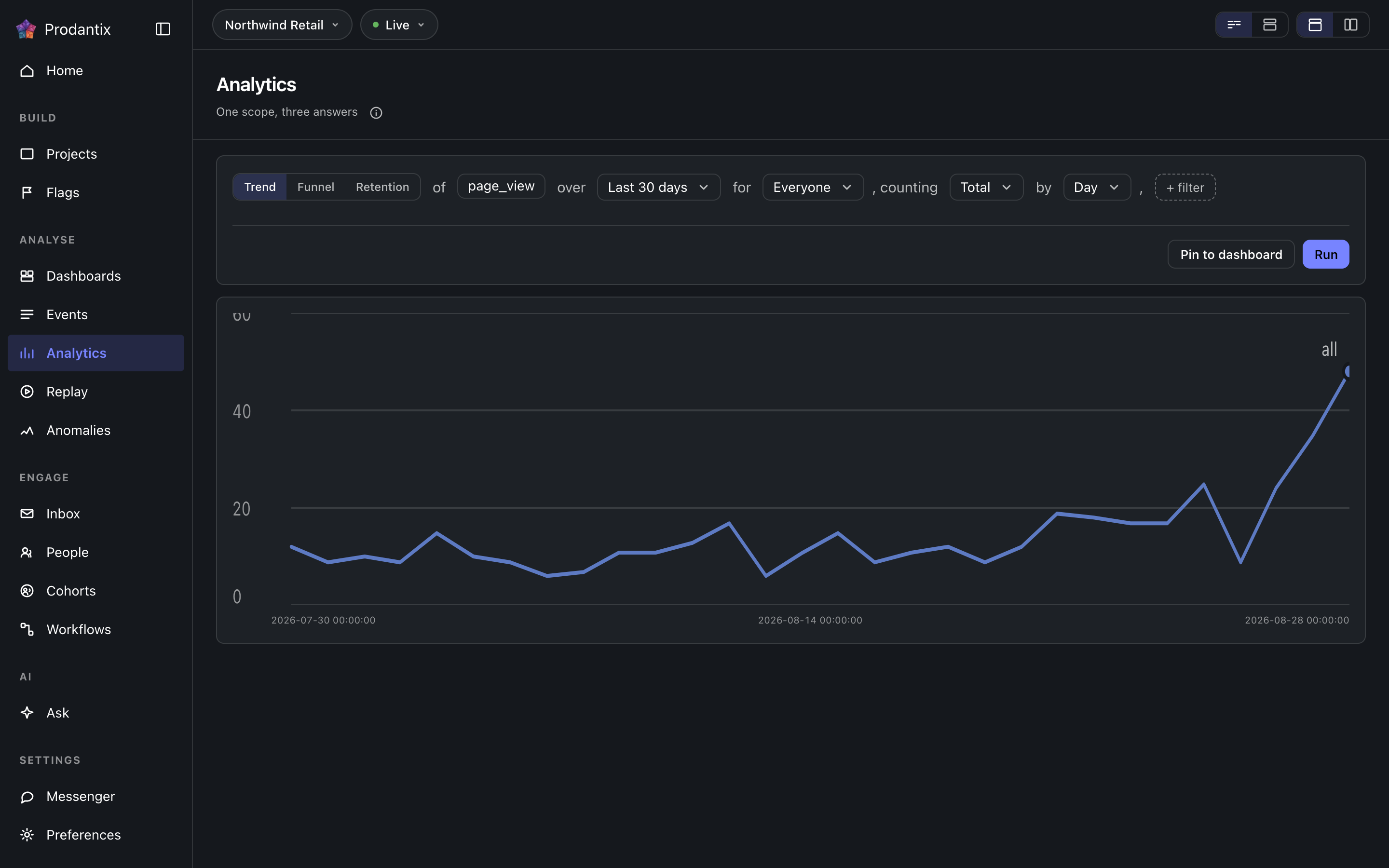
工作台:一个问题写成一句话,可以用三种方式提问:趋势、漏斗或留存。结果就地绘制,值得保留的可以钉到仪表板上。
Six modes, one question
A trend counts one event over a range, as totals or unique people, at a granularity the range makes sensible. A funnel orders two or more steps and reports who made it through each. Retention asks who came back: an entry event, a return event and a matrix of periods. Paths asks what happened next, stickiness how many days a period's users came back on, and lifecycle who was new, returning, resurrecting or dormant in each period. Switching modes keeps everything the modes share, so a trend refined into a funnel does not start over.
Metrics and formulas


A trend is not one measure: Add a metric appends a letter, B onward, each its own event and its own total or unique users measure, the scope event staying letter A. Add a formula turns a row into an expression combining those letters with decimal numbers and + - * /, grouped with parentheses, up to 200 characters and never another formula's own letter. A point the formula cannot compute, a division by zero among them, draws as a gap rather than a zero.
The compared period


Compare asks the same question again over the window right before this one: Previous Period, Previous Day, Previous Week, Previous Month, Previous Quarter or Previous Year. Every series in the result gets a past twin, drawn apart from the current one rather than as a plain extra line, and the scope note names which one is picked. The compared period draws on Line, Stacked Line, Column, Stacked Column, Bar, Stacked Bar, Table and Metric; Pie draws the current period only.
Breakdowns


Breakdowns split a trend by up to three fields at once, an event property or one of the columns the DSL allow-lists: every series in the result carries the tuple of values it is one combination of, in the breakdowns' own order. The table reads every combination as its own row; the other chart types read the first breakdown as the series and fold the rest into its key.
Paths: what happened next


Paths start from an anchor event and walk one to five steps forward, or backward, within the anchor's session or a window of minutes or hours. Each step reports its top three, five or ten events with the share of that step's users, the events past the top folded into one row, and the users who took no further step. The default reading is one column per step; the same result reads as a sankey, with a block per event and a ribbon into each block of the next step, or as a tree that nests the next step's events under each event until its caret opens it.
Step by 决定一步是什么。按事件,这段行走就是锚点之后最靠前的那些事件名。按页面,它只考虑页面浏览,每一步的键是主机加路径名,于是这段行走读作定价、注册、结账,而不是页面浏览、页面浏览、页面浏览。锚点也随之改变:事件字段变成一个选择器,列出访客在该时间范围内真正到达过的页面,按用户数取前一百,因为手写的页面锚点必须精确匹配主机和路径名才能给出任何答案。在桑基图和树形图中,页面步骤画出路径名,并把主机作为淡色前缀,这样共用同一路径的两个主机仍然分得清。
Stickiness: how many days


Stickiness counts, for each week or month, how many of the event's users were active on one, two, three and more of its days. The result row steps between periods; the column chart reads one period at a time, and the table reads all of them.
Lifecycle: new, returning, resurrecting, dormant


Lifecycle sorts each period's users into four states: new were first seen in the period, returning were active in it and the period before, resurrecting came back after a period away, and dormant were active the period before and not in this one. First-seen reads the whole retained history, so a user is new once; activity is read one period before the range, so the first period's returning and dormant counts are real rather than zero by construction. The stacked column draws dormant below the zero line; the table adds a net column.
The sentence and its clauses


The question reads as a sentence: measure, event, range and any clauses, each word an editable control with the project's own event names suggested as you type. Property clauses narrow by what an event carried; a cohort clause scopes the whole question to a saved cohort. Whether the question composes as one sentence or as labelled groups is a stored preference, as is the split or stacked layout; nothing runs until Run, so a half-edited question never fires.
度量、事件与排除
每个指标可以统计事件总数或独立用户数,也可以读取事件携带的数字:度量选择器分为 Count、Sum of 和 Average of 三组,后两组列出该指标的事件以数字形式发送过的每个属性,这一行随后读作 the sum of amount。指标的事件字段最多接受 8 个事件,它们合在一起作为该指标字母下的一条序列统计,标签列出所统计的每个事件。在趋势中,群组之后的 Exclude 可以排除 People who did an event,即在时间范围内做过最多 8 个事件中任意一个的人;也可以排除 A cohort,即问题所限定群组以外的另一个群组;或两者都排除。每个细分也可以指定要排除的值。时间范围使用日期选择器:Today、Yesterday、Last 7 days、Last 30 days、Last 3 months、Last 6 months 和 Last 12 months,或在其双月日历上选取的任意日期区间。日期按 UTC 日计算,与数据仓库的计数方式一致;相对范围按名称保存,因此按 Last 30 days 保存的报告始终读取最近 30 天。在传输中,指标用 orEvents 携带额外的事件,查询携带 excludeDid 和 excludeCohort,属性列表来自 eventCatalog 上的 numericProperties。
Reading a result as another chart


Every result row ends with the chart type it is read in. The menu lists Line, Stacked Line, Column, Stacked Column, Bar, Stacked Bar, Pie, Table, Metric, Funnel Steps, Retention Curve, Ranked Columns, Sankey and Tree, in that order, with the ones the result cannot take greyed rather than hidden. A trend, a stickiness period and a lifecycle take any of the series types; funnel steps take a funnel; the retention curve draws one line per cohort over its matrix; ranked columns, the sankey and the tree read paths; the table reads everything. Each mode remembers the type you chose, the URL carries it as ?chart=, and a pinned tile keeps it.
图表设置
图表类型旁边的设置按钮会打开该图表自己的设置,按页面布局选择器所选,以弹出层、图表旁的面板或对话框的形式出现。Left axis 和 Right axis 两个标签页设置每条坐标轴是否显示、它的标题、它的单位(计数、货币、百分比或自定义)、前缀和后缀、大数字是否缩写、保留几位小数并预览结果、固定的最小值和最大值边界(超出的值裁到边缘或略去),以及线性或对数刻度。Time axis 标签页显示或隐藏时间轴,为它加标题,并在按天或按小时的图表上为周末加阴影。Series 标签页把每个指标或公式移到左轴或右轴,问题中每个指标自己的那一行也能做到这一点,并选择 Standard 配色或色盲安全配色。每次更改都会立即重绘图表;保存的报告或洞察会保留其设置,版本历史会写明对设置的更改,固定的磁贴也按这些设置绘制,手机上同样如此。在传输中,这些设置作为 chart 字段与 viz 并列,出现在报告、洞察和磁贴上。
结果表
在图表下方,趋势的结果表为每条序列列出一行:其线条所用的色块、细分值(当问题有多个字母或没有细分时则为其指标)、一列 总和,以及每个时间段一列;趋势进行比较时,每个时间段旁还有其过去的对照。清除某行的复选框或点击其色块,会把它的线从图表上移除;该行仍留在表中,文字变淡、色块变为空心,图例也以空心保留它,表头的复选框则可放回所有行或移除所有行。表格上方的搜索框把行缩小到值中包含所输入内容的那些行,但绝不会从图表上移除任何线。结果行中的视图组可在 图表、表格 和 图表和表格 之间切换,结果默认以 图表和表格 打开;当图表类型为 表格 时,表格本身就是图表,该组随之隐藏。视图和被移除的行作为图表设置的一部分随报告保存,位于 chart 字段中的 view 和 hidden,因此保存的报告、洞察和固定的磁贴绘制相同的线,手机上同样如此。其他模式在图表下方显示各自的表格,带搜索,但不能选择行。
图表上方的那一行显示结果是多久之前运行的,图表设置旁边的刷新会再次提出同一个问题。此后对句子所做的更改要等到点击运行才会生效。
对数据点采取操作
点击图表上的一个数据点会打开一个菜单,标题就是该点本身:它的序列、区间和数值;在手机上,长按会打开同一个菜单。此报告会修改问题并重新运行。放大把趋势或生命周期收窄到所点击的区间,并细化一级:月细化为周,周细化为天,趋势的天细化为小时。在细分的数据点上,筛选行会为它的每个值添加一个筛选条件,排除行会把一个值从其细分中去掉,每个值一行;在没有细分的数据点上,两者都以按此筛选和排除此项的灰色状态显示。深入查看在每种模式下列出构成该点的人和事:趋势或生命周期的区间、漏斗的步骤、留存的单元格、路径上的事件以及粘性的列,都会列出各自的对象。查看用户、查看事件和查看会话回放默认在对话框中打开它们,也可以按分析页面上选择器的设置在侧边面板或页面本身中打开。在人员中打开(或事件、回放)会把该点带到相应页面,页面上有一个标签注明该点并可将其清除;当选择器把该点直接发送到页面时,返回报告会回到问题。解释包含根本原因分析:对于前面有一个区间、统计总数或独立用户的趋势数据点,它会在 Ask 中起草一个问题,询问这条线为何在两者之间上升或下降。在 API 中,该点作为 projectPeople 和 replaySessions 的 point 参数传递,也在 events 的筛选条件中传递:报告的类型和查询,加上标识它的区间、步骤、事件、群组、周期、活跃天数或状态。
注释
在某个点的菜单中选择添加注释,即可用一条备注和最多十个标签标记那一天,或在日历上选择的一段日期。在报告上,显示位置可将注释仅保留在该报告上,或显示在项目中日期范围涵盖它的每个图表上;未保存为报告的问题会将其显示在项目的图表上。标记位于日期轴上:悬停时会画出它的线条和一张卡片,显示备注、标签、日期以及添加者;点击后卡片保持打开,并为添加者和有权编写注释的人提供编辑和删除。图表设置中的注释标签页会列出这些注释,并隐藏你关闭的标签,设置随报告保存;看板上的卡片也会画出相同的标记。在 API 中,它们是 annotations、createAnnotation、updateAnnotation、deleteAnnotation、annotationChanges 订阅以及 /v1/projects/{projectId}/annotations;代理通过 prodantix.annotations.list 和 prodantix.annotations.create 读取和添加注释。
Results, and keeping them
A trend draws as a series, a funnel as its steps with the drop between them, retention as a matrix whose rows are entry periods, paths as ranked columns per step, stickiness as columns over days active and lifecycle as a stacked column. Once a result exists, Pin saves the question to a board on Saved, where its tile re-runs the query on every open and draws it as the chart type it was pinned in.
Pin 旁边是 Save。它的第一行是 As an insight:把问题连同编辑器和图表整个保存在一个通过提示框询问的名称之下,然后卡片头部用一个标签标出打开的洞察;地址携带 ?insight=,所以链接能重新打开它。编辑问题后,标签会在名称后读作 changed,直到 Save 的第一行(此时为 Update)把编辑写到已保存的内容之上,或者它的第二行 Save as a new insight 把编辑另存为一个新洞察。下一行是 Users as a cohort:为结果所计的那些人起个名字,并把他们保存为一个静态群组。名单在服务端按查询运行时的样子物化,因此保存的是结果所计的全部人,而不是图表所画的那些,上限为 100,000,一个没有计到任何人的结果会被拒绝。群组会带上它被读作的那句话,而由于是固定名单,它永远不会被重新求值:下周再问同一个问题,答案是关于下周的,而群组仍然保留今天所计的人。已保存的洞察列在 Saved 的 Insights 标签页中。 分隔线下方是导出 CSV:服务器按查询实际运行的内容将结果写成电子表格,每个时段和细分一行,每个指标字母一列,包含引擎允许的最多一千种组合而非图表只画的前几项,并以工具和时间范围命名文件。最后是监控阈值,只在趋势结果上生效:如果结果还不是洞察,就把它保存为洞察,然后在它的第一个指标上声明一个界限,高于、低于或变化超过某个值,每天检查一次该洞察最后一个完整的时段;界限被越过时,该洞察会列在需要你处理中,重新打开的洞察会在图表上把界限画成一条带,值恢复后警报会自行清除。
Save as report 把问题保留为看板上的一份报告,分两步:先是名称和描述,然后是看板,从一个三行高、可搜索的列表中选择,New board 固定在下方。之后地址会带上 ?report=,页头显示项目 › 看板 › 报告,其中看板是链接,卡片头部用一个标签标出打开的报告,一旦编辑器与已保存的内容不同,名称后会显示 changed,直到 Save report 把修改写成下一个版本,或 Save as new report 把它保留为另一份报告。打开报告时,Save 菜单还可以重命名它、移到另一个看板或复制它;移动立即生效,提示条会连同 Undo 一起说明。卡片下方的版本条标明当前版本、由谁保存以及何时;Show history 展开每个版本、更改了什么、由谁以及何时,可见三条,除当前版本外每条旁边都有 Restore,恢复会写入一个复制所选版本的新版本,而不是改写历史。报告列在 Saved 的 Reports 标签页里。
分享报告
打开已保存的报告后,运行行会提供 Copy link 和 Share。Copy link 会复制报告的地址,连同其时间范围、分群和筛选条件,公司里有权打开该报告的任何人都能打开它。Share 会打开两个标签页,先是 Teammates。Teammates 把报告发送给公司里最多 20 人,如果你添加了备注会一并发送:每个人都会在控制台的通知中收到,在开启了推送的设备上收到推送,并收到一封邮件。对话框保持打开,并说明已发送给谁。
Public link 会生成一个只读页面,任何拿到链接的人无需登录即可打开:报告最近一次运行时的样子,包含图表和数字,但不包含问题的筛选条件、分群或人员,且报告按保存的方式每运行一次都会刷新它。链接在所选日期结束时失效,可选从明天起到 90 天之内,初始为 In 30 days;开启期间选择另一天即可续期,关闭则立即停止。创建公开链接需要单独的权限,代理永远不会拥有该权限;没有该权限的角色会看到开关被禁用,并有一行文字说明原因。
Where this meets the API
The concept is the Analytics pillar. On the wire, the six modes are six queries: runQuery, runFunnel, runRetention, runPaths, runStickiness and runLifecycle, with event names suggested from eventCatalog and, for a path stepping by page, the anchors from pathsPages (GraphQL reference). Pinning writes the question into a board through updateDashboard, with the report's kind and the chart type beside its query; saving an insight is createInsight, Update is updateInsight, and Saved's Insights tab reads insights. Save as report is createReport, Save report is updateReport, the strip's Restore is restoreReportVersion, and Saved's Reports tab reads reports. Sharing reads the public link with reportPublicLink, turns it on or renews it with setReportPublicLink, turns it off with turnOffReportPublicLink and sends to teammates with shareReport, while reportShareChanges streams every change; a visitor's page reads /v1/shared-reports/{token} (API reference).