मैसेंजर
आपके उत्पाद के भीतर रहने वाले चैट विजेट की सेटिंग्स: इसका रूप, यह किसे दिखाता है, इसके उपलब्ध घंटे और इसका इंस्टॉल स्निपेट। पूर्वावलोकन ठीक वही दिखाता है जो सहेजा जाएगा, और संदेश स्वयं इनबॉक्स में आते हैं।
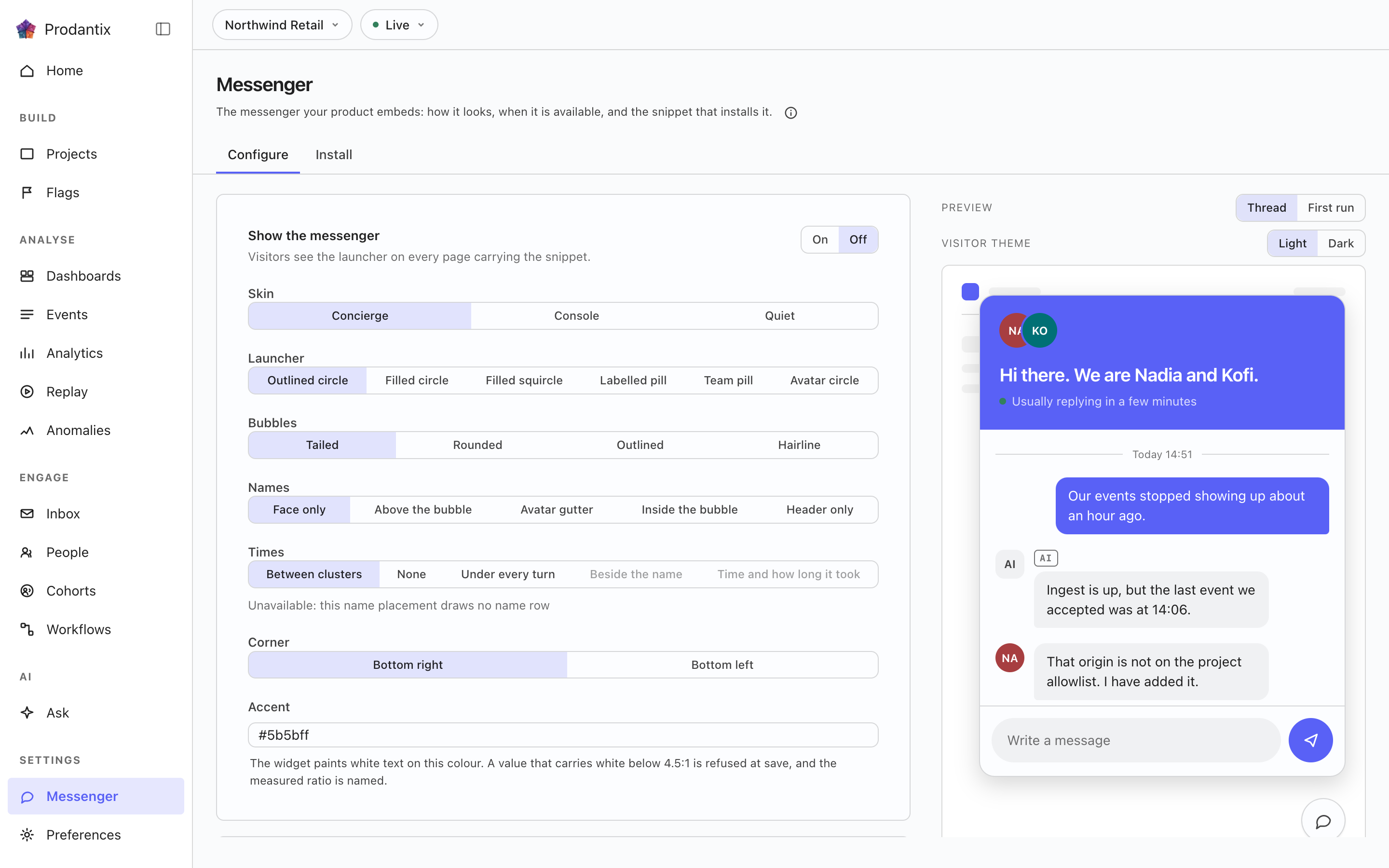
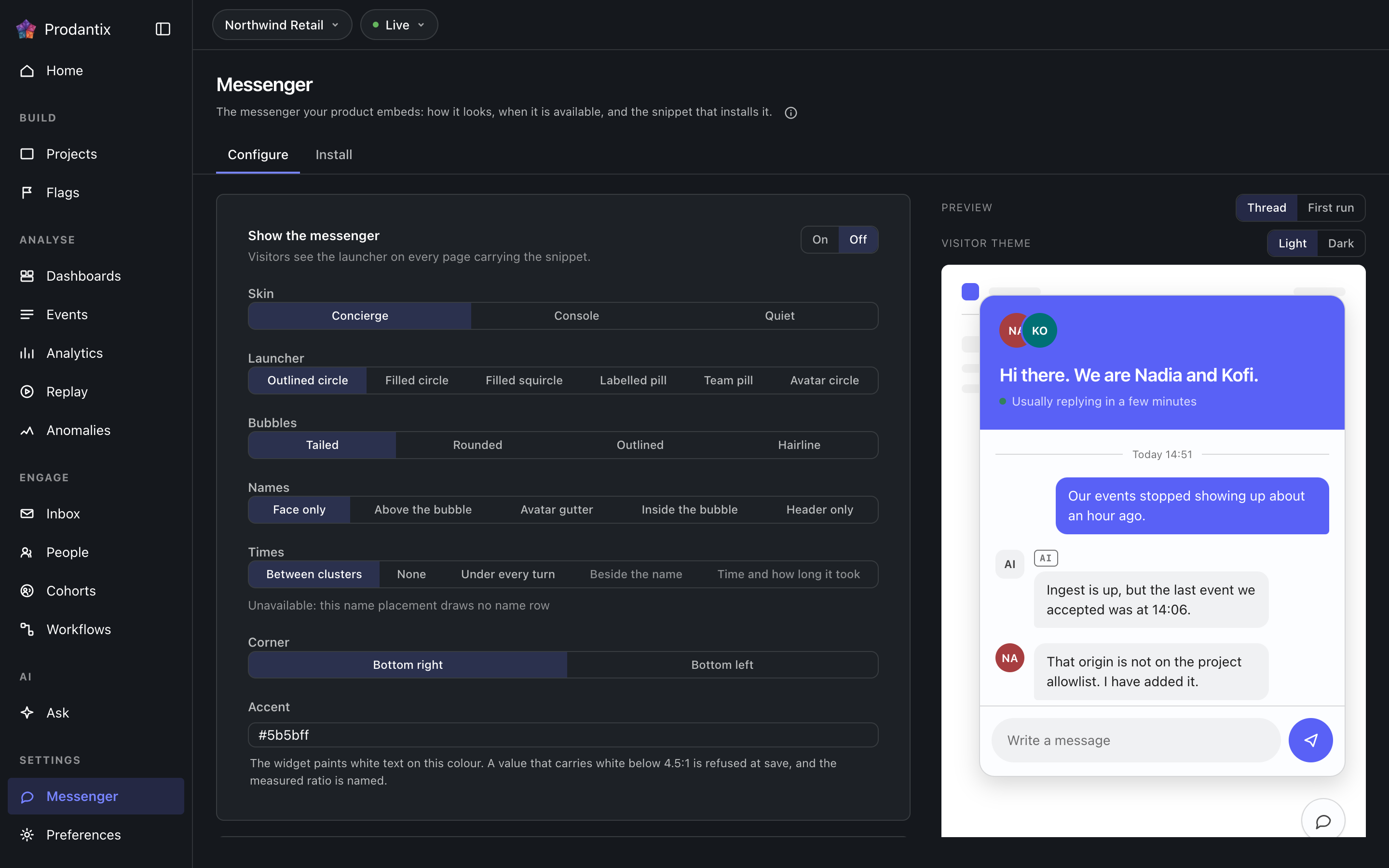
Configure
Everything the widget looks like and when it answers, edited beside a live preview that renders the draft rather than the saved state. Appearance covers the accent, the skin, the composer's corner, the launcher, the bubbles' shape and fill, and whether agent names and message times show. Availability covers the timezone, open and close hours per weekday, the greeting, the away message and the suggested prompts a visitor can tap. Nothing applies until Save, Discard returns to what is stored, and a failed save says so next to the button that failed.
Team
Who the messenger shows, on its own tab: one switch per member of your company, in the roster's order. The launcher draws the first faces, and a reply carries the person's name and picture. A tick writes at once rather than waiting for Save, and a member picked before their first sign-in is drawn as initials until they sign in. Your own row is marked You and carries Name and picture: the name visitors see under your replies, blank for your first name, and the picture beside them, your Bomdisoft ID picture until you upload one under the project logo's rules, PNG, JPEG, WebP or SVG up to 256 KB. A visitor is told nothing about a member who is not on the team, and nothing about a team member but their messenger name and picture.
Help centre
Your organisation's Clepit site, on the tab between Assistant and Install. Before a site is connected, Set up in Clepit opens Clepit's onboarding and brings you back to this tab. Once one is, the tab names the site, how many articles it holds and in which languages, and Search articles in this messenger lets visitors find articles before they write, while the assistant answers from them as well as from your knowledge. Visitors find articles in one of three places: a Help tab beside Messages, the first view above the starter prompts, or up to three suggestions above the box while they type. Opening one reads it inside the messenger and sends nothing. The help site follows your Clepit plan, and searching it from the messenger needs a Prodantix plan above Starter.
Install
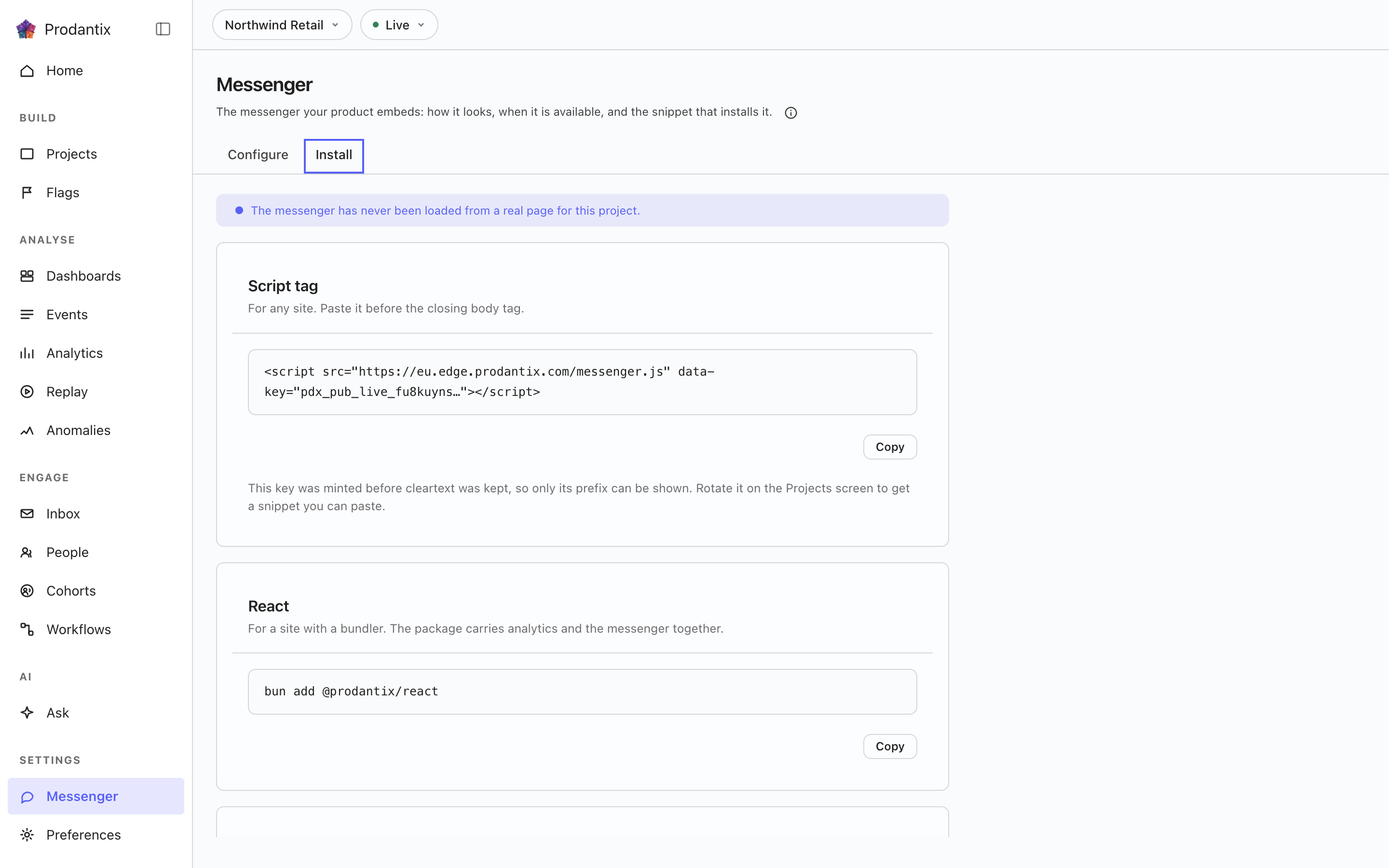
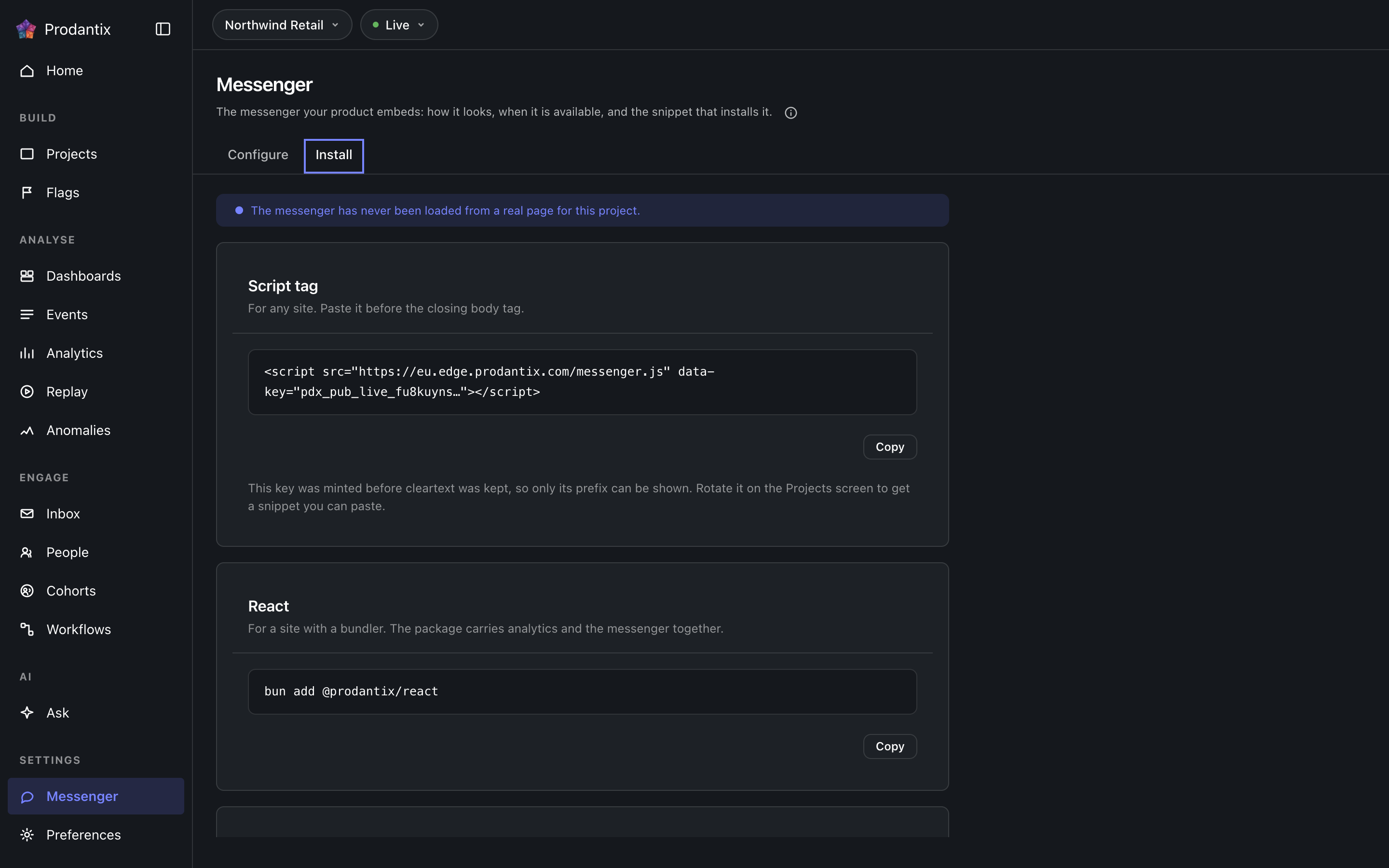
The snippet that puts the widget in your product, with the project key shown masked, plus a React variant. The tab also answers the first question of every install: whether the widget has ever loaded from your host, so a snippet pasted but never reached reads as exactly that. Verifying who a signed-in visitor is rides the project's signing secret, minted and rotated on the Projects screen. A site with a content security policy allows the widget's hosts too, img-src included, because your team's pictures and the files visitors send are images, and frame-src allows your help site, which the messenger frames to show an article: @prodantix/sdk/csp gives every source it needs, prodantixFrameSrc the help site's.
Where this meets the API
The concept is the Messaging pillar. On the wire: the settings are messengerConfig and updateMessengerConfig, the team is messengerTeam and setMessengerTeam (GraphQL reference), the widget itself talks to the edge with the project key and reads the team and each picture from it, and the conversations it starts land in the Inbox, streaming over the conversation rooms (Realtime events).
The settings as JSON
Four settings are JSON values rather than single fields. The GraphQL input names them greeting, awayMessage, availability and starterPrompts, and the MCP tool prodantix.messenger.update_config names them greeting, away_message, availability and starter_prompts. An update carries every setting except the on switch and file attachments, so read the current values first with messengerConfig or prodantix.messenger.config and change only what you mean to.
Greeting and away message
Each is an object keyed by language code, a two or three letter lowercase tag such as en or fil, holding the words for that language. A visitor reads the first of their browser languages that is written, then the default language (defaultLocale in GraphQL, default_locale in the tool), then English, then any language that is written.
{
  "greeting": { "en": "Hi, how can we help?", "fr": "Bonjour, comment pouvons-nous vous aider ?" },
  "awayMessage": { "en": "We are away right now and reply when we are back." }
}
Availability
An object with timezone, an IANA zone name such as Europe/Paris and never an offset, and windows, the opening hours. Each window names its days, from mon, tue, wed, thu, fri, sat and sun, and an open and close time as 24-hour HH:MM in that zone. The messenger is open from open up to, but not including, close. A day with no window is closed, and two windows on one day give a split shift.
{
  "availability": {
    "timezone": "Europe/Paris",
    "windows": [
      { "days": ["mon", "tue", "wed", "thu", "fri"], "open": "09:00", "close": "12:30" },
      { "days": ["mon", "tue", "wed", "thu", "fri"], "open": "14:00", "close": "18:00" }
    ]
  }
}
Starter prompts
An object keyed by language code, each language holding at most 3 prompts for a visitor's first visit. An empty list is a real answer: that language shows no prompts rather than another language's. A prompt has three fields: blocks, the prompt as clepit editor blocks; html, those blocks rendered, at most 4,000 bytes; and text, the plain words a tap sends as the visitor's message, never empty and at most 400 characters. The HTML may use only p, br, strong, em, a, ul, ol and li, with classes starting clepit-, data-block-type of paragraph or list, and on a link an http or https href with target="_blank" and rel="noopener noreferrer". Starter prompts need a plan that includes them.
{
  "starterPrompts": {
    "en": [
      {
        "blocks": [{ "type": "paragraph", "data": { "html": "Where is my <strong>invoice</strong>?" } }],
        "html": "<p class=\"clepit-output-paragraph\" data-block-type=\"paragraph\">Where is my <strong>invoice</strong>?</p>",
        "text": "Where is my invoice?"
      }
    ]
  }
}